Manual & FAQ
How to use SafeVault on this device. No account needed — install and use.
Uninstall and data loss
Unpaid customers
Your vault lives only on this device. If you uninstall the app, that data is deleted with it. You are responsible for that data loss.
Paid customers
Sync your vault among multiple devices, and keep a backup on more than one device. Then the data will not be lost if one of those devices uninstalls the app.
Getting started
- Download SafeVault from the App Store, Google Play, or Microsoft Store.
- Open the app. No account is required — install and use on this device.
- Set a PIN / lock passcode when prompted. Enable Biometric Unlock (Face ID, Touch ID, fingerprint, or Windows Hello) if the device supports it.
- Open Vault. Create a category if needed (Email, Social, Banking, or custom).
- Add an entry: title, password, and optional description. Titles must be unique inside that category.
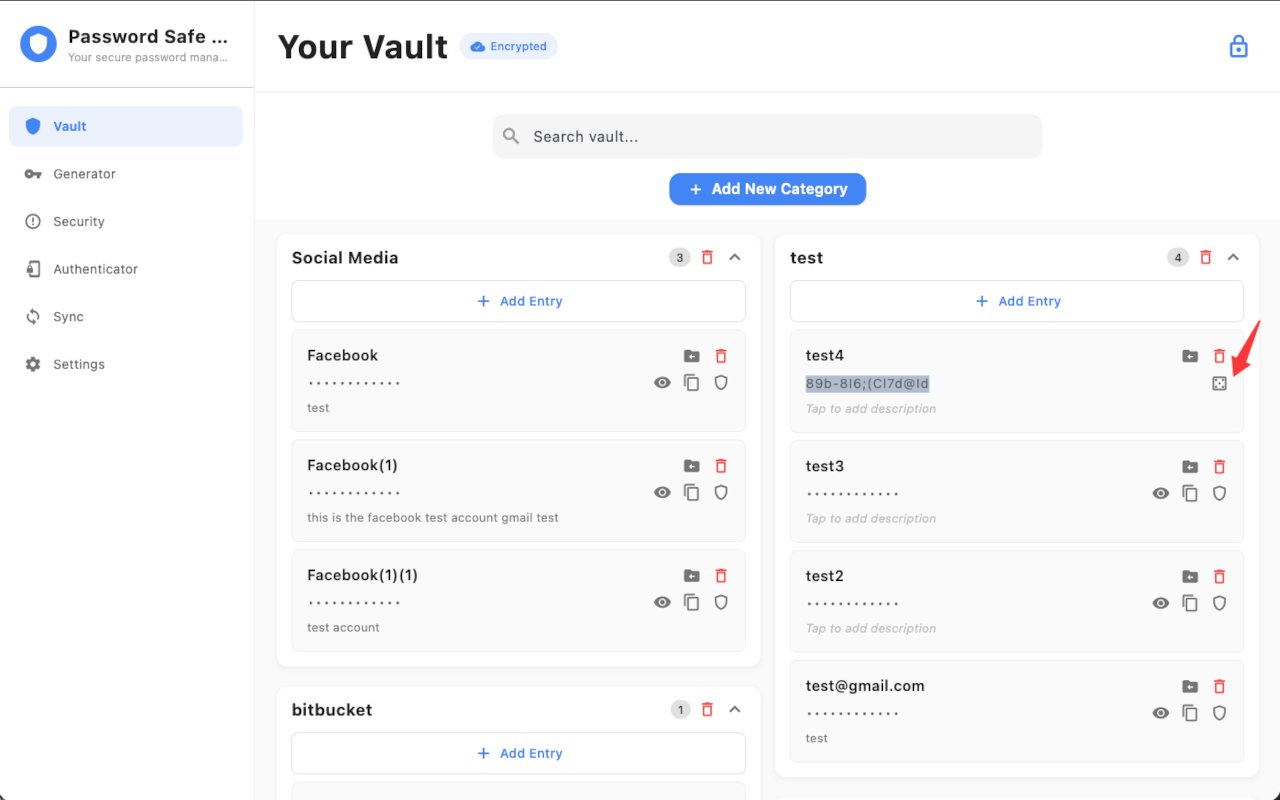
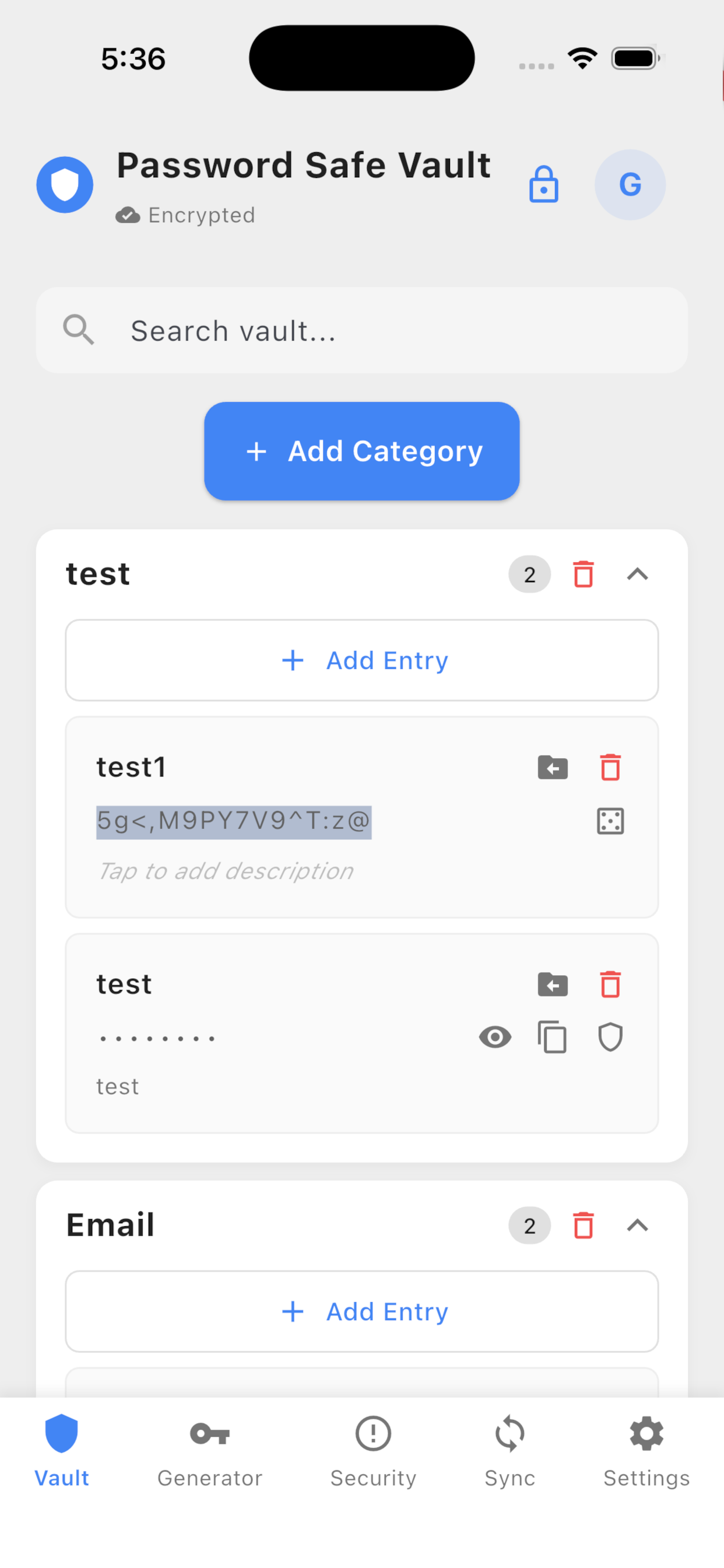
- Optional: generate a password in Generator, or when you create a new entry click the generate button on the right of the password field.
- Optional: enable Settings → Privacy → Clear Clipboard to clear copied passwords after 30 seconds.
- After the first real entries, export a backup from Settings → Data Management (store unlock required on Android and Windows).
- Optional: open Authenticator to add website verification codes, or attach one from a vault entry.
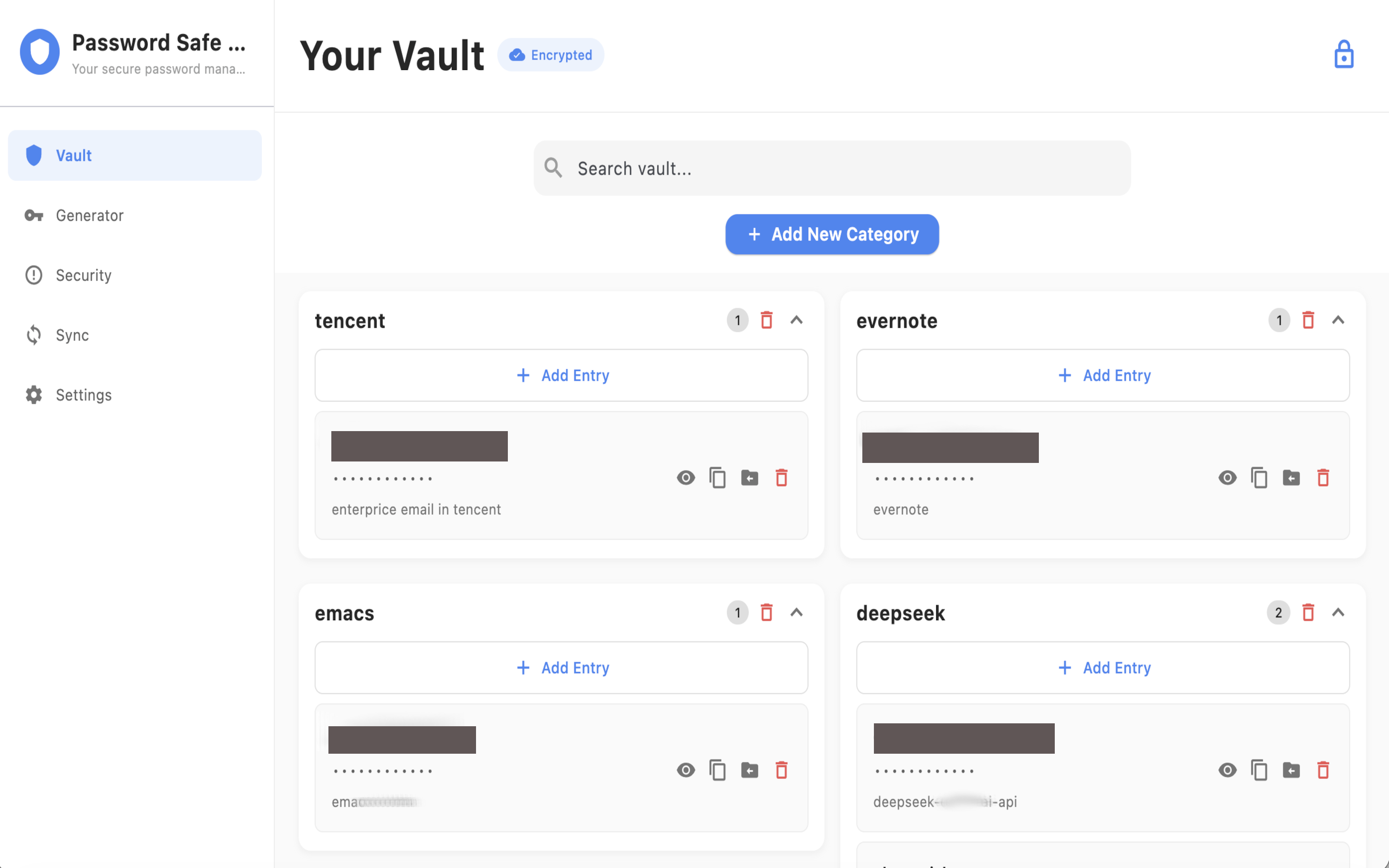
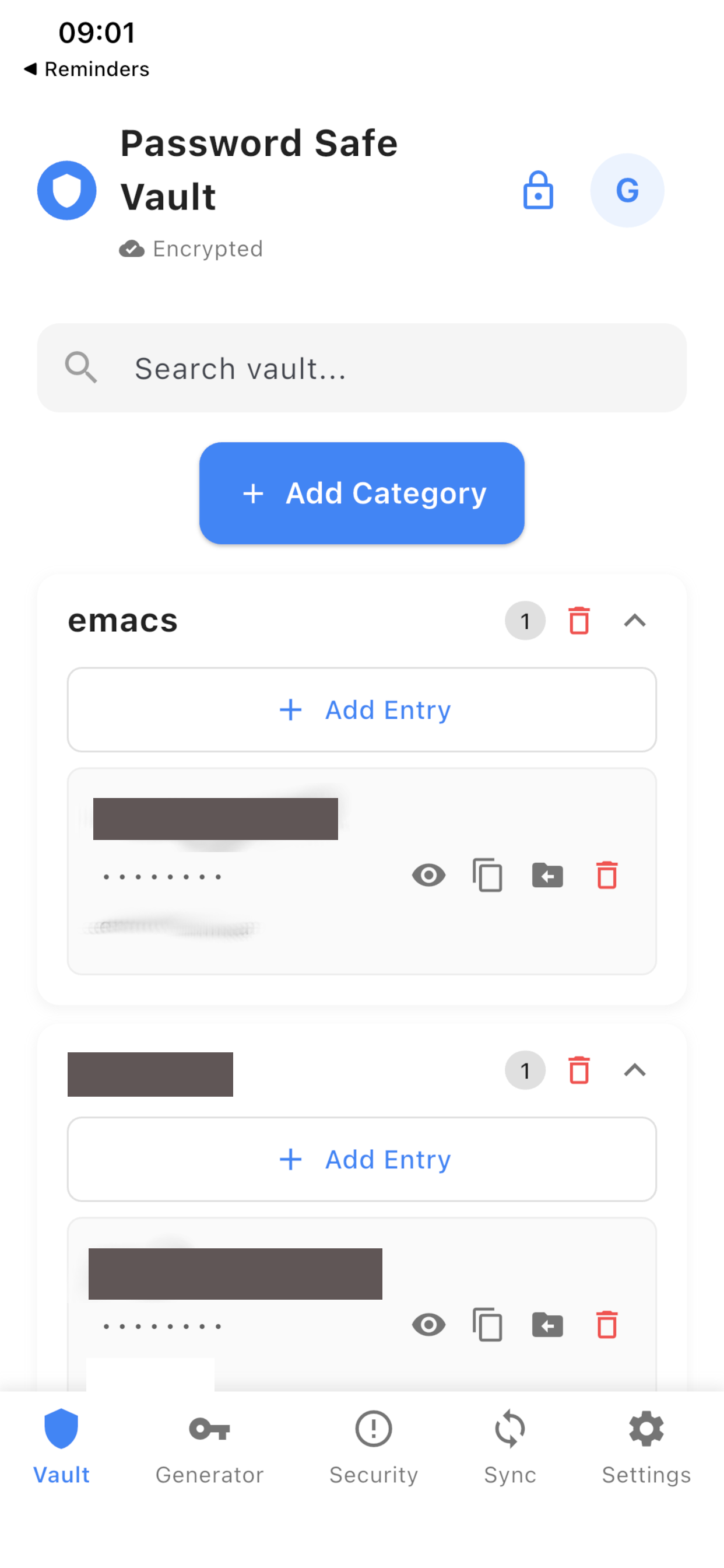
Vault, search, and generator
Add a category and add an entry from Vault. Search mode hides New Category and New Entry. When you create a new entry, click the button on the right of the password field to generate a 16-character password automatically. You can edit the title, password, and description, or move an entry to another category. A duplicate title in the same category is rejected. Optional notes live on the entry as a description.
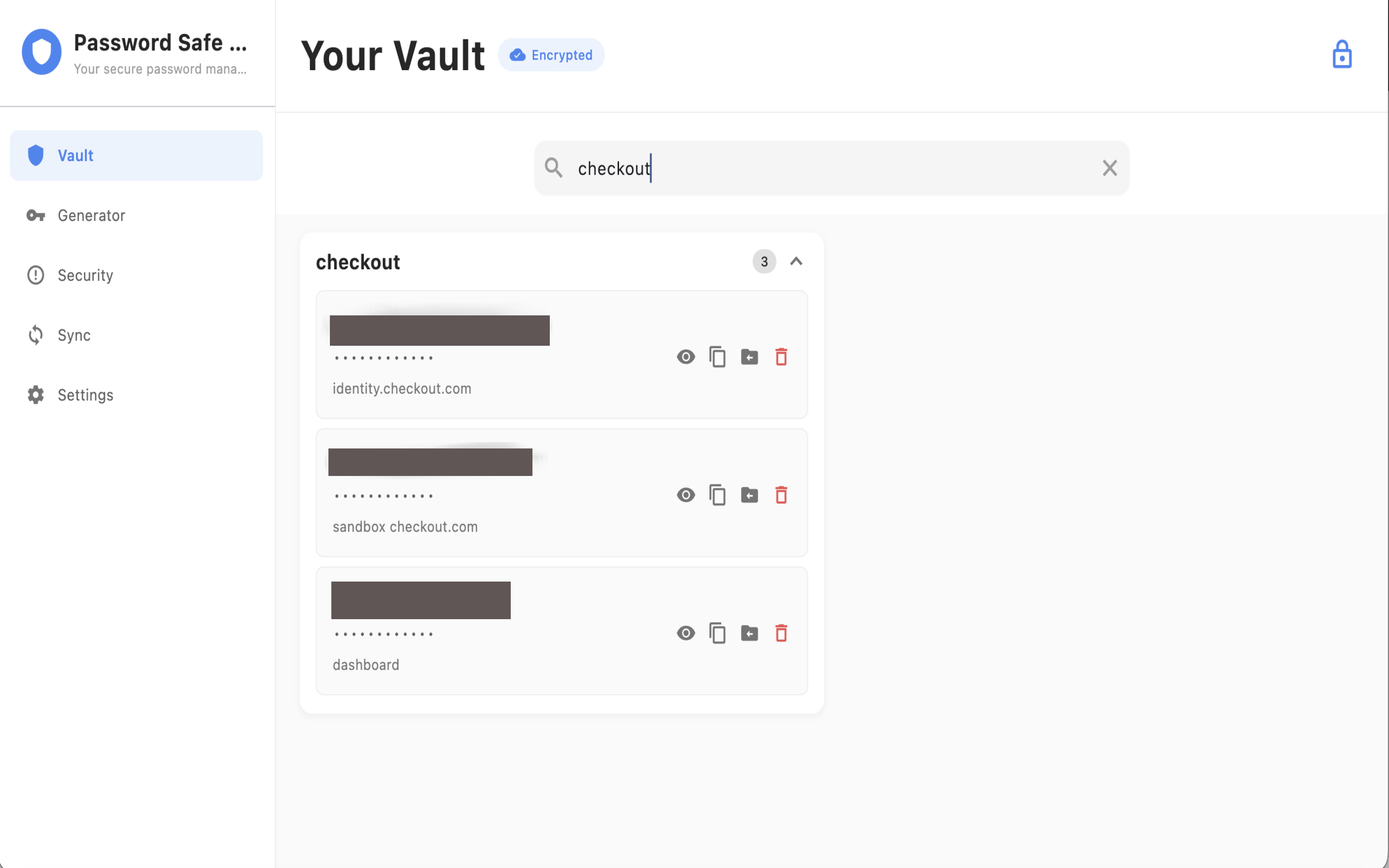
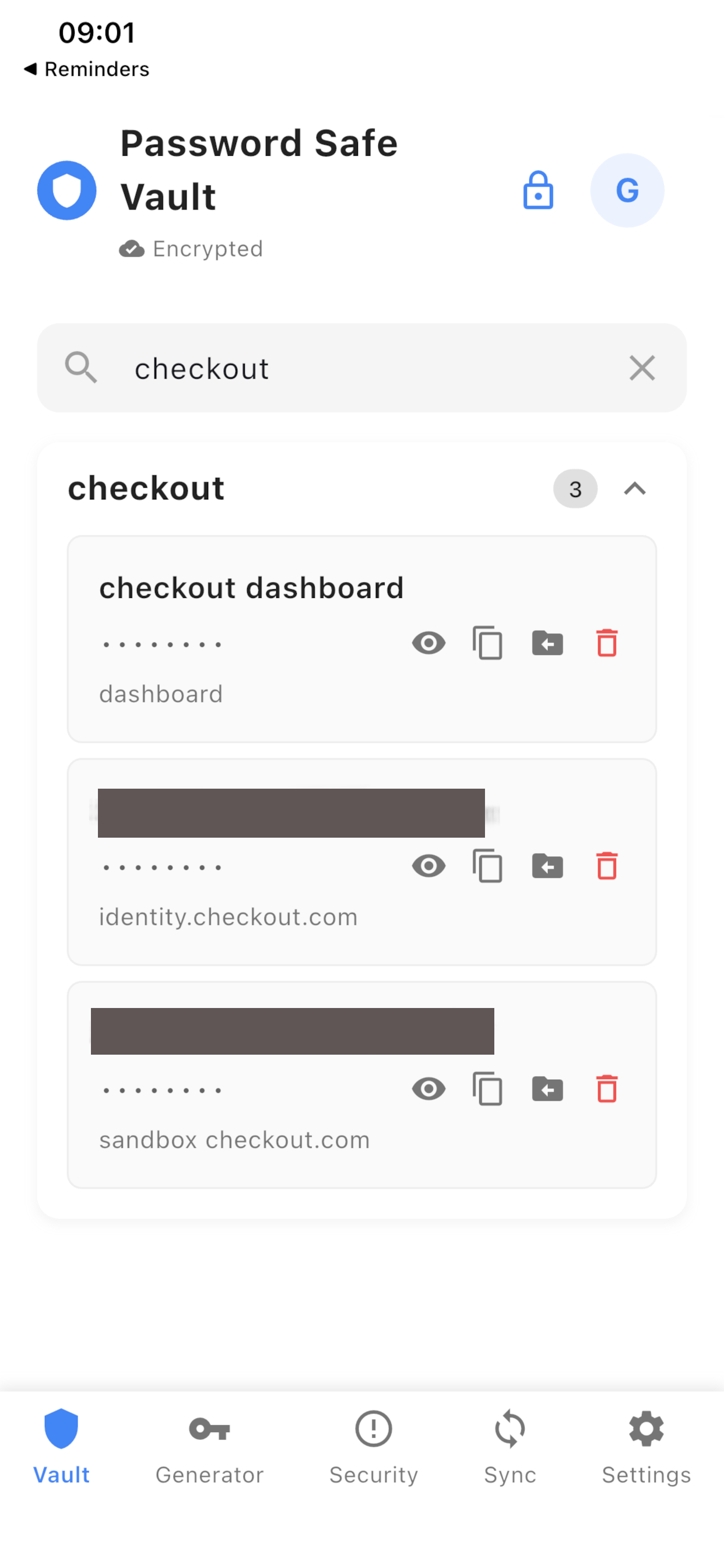
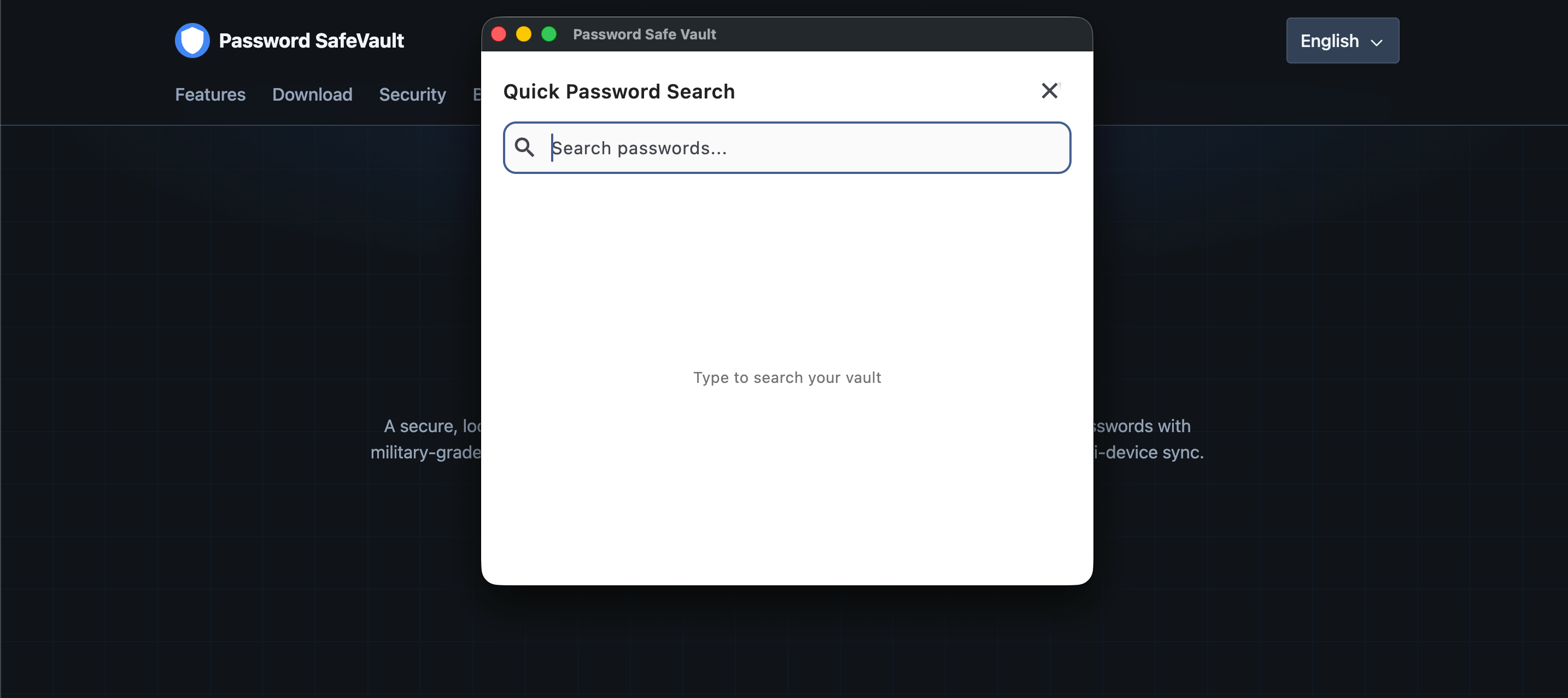
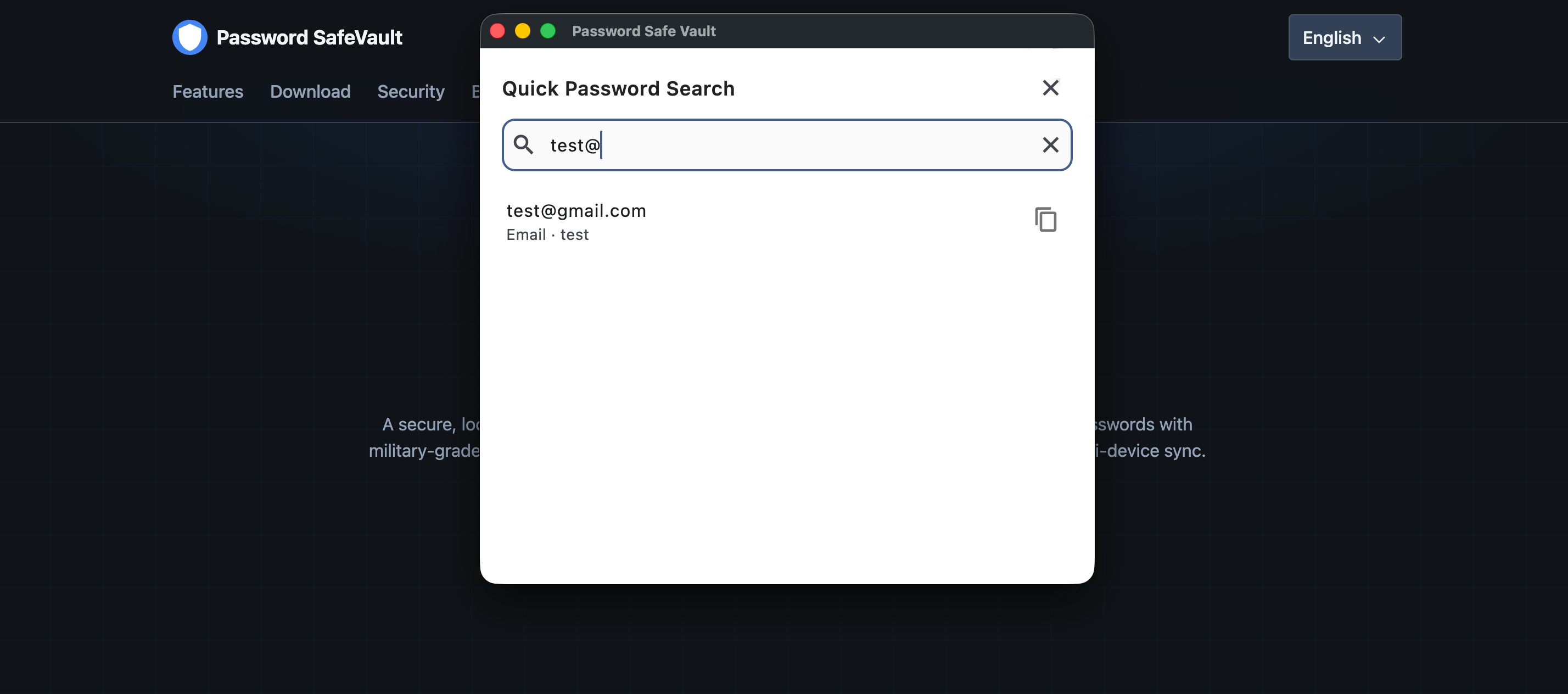
Find entries across categories from Vault search. Space-separated terms all need to match, so each extra word narrows the list. Wrap a phrase in quotes to keep spaces. Search looks at category, title, description, and password. From search results, pin a category to the top. On desktop, Quick Search is search-and-copy only — it does not show the full vault.
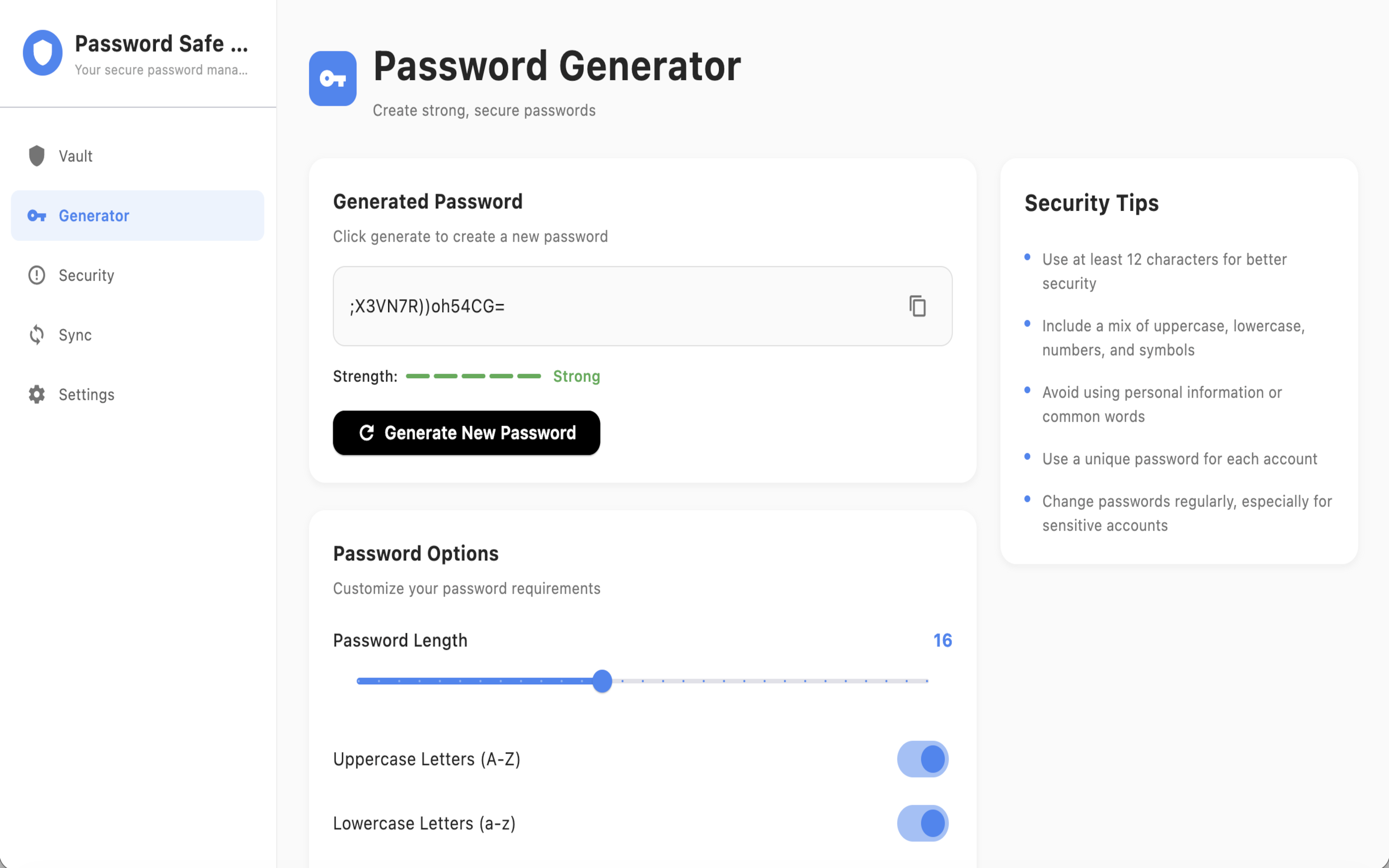
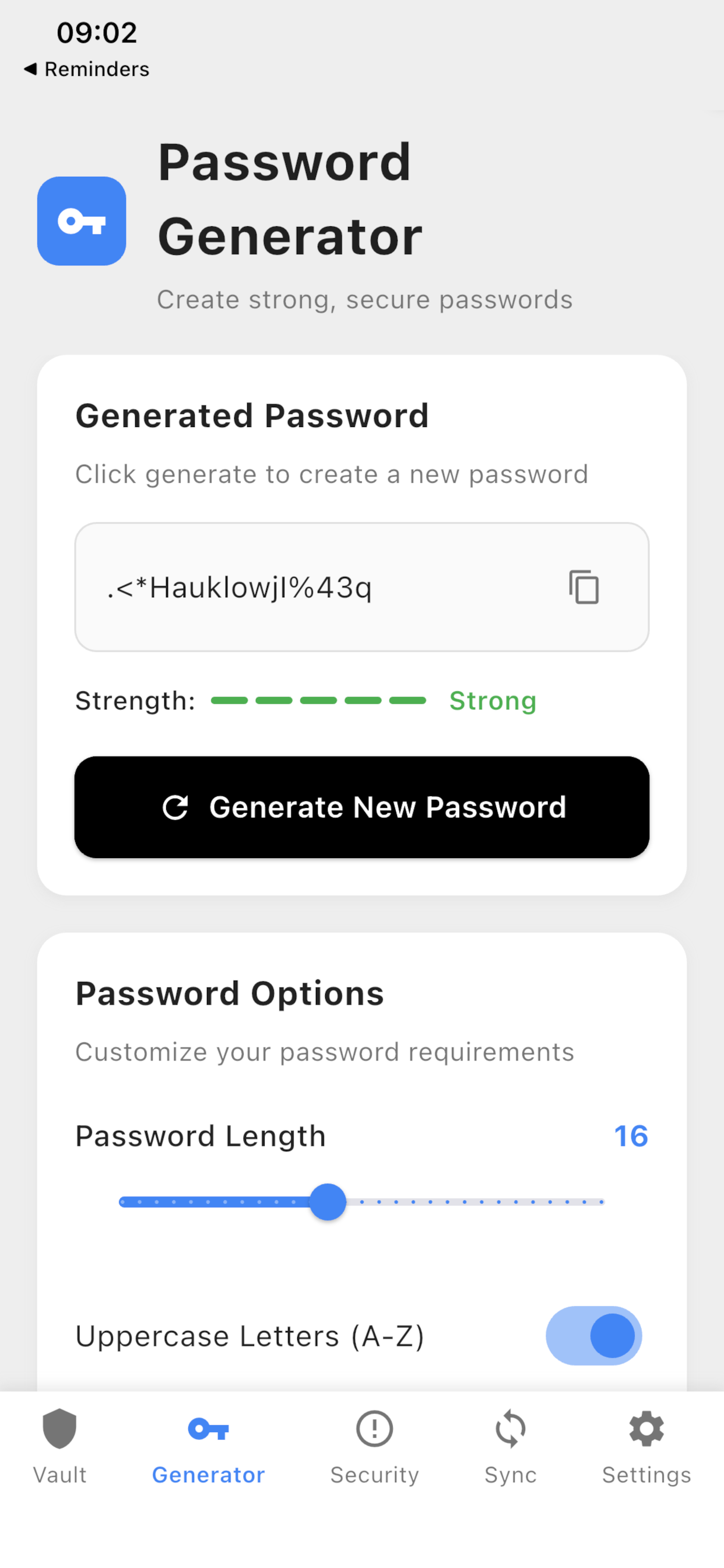
Generator length is 4–32 characters. Toggle uppercase, lowercase, numbers, and symbols. A strength indicator updates as you change options. When you create a new vault entry, click the generate button on the right of the password field to fill a 16-character strong password with the same generator. The same control works while editing an existing password. Copied passwords follow the clipboard auto-clear setting.
Authenticator
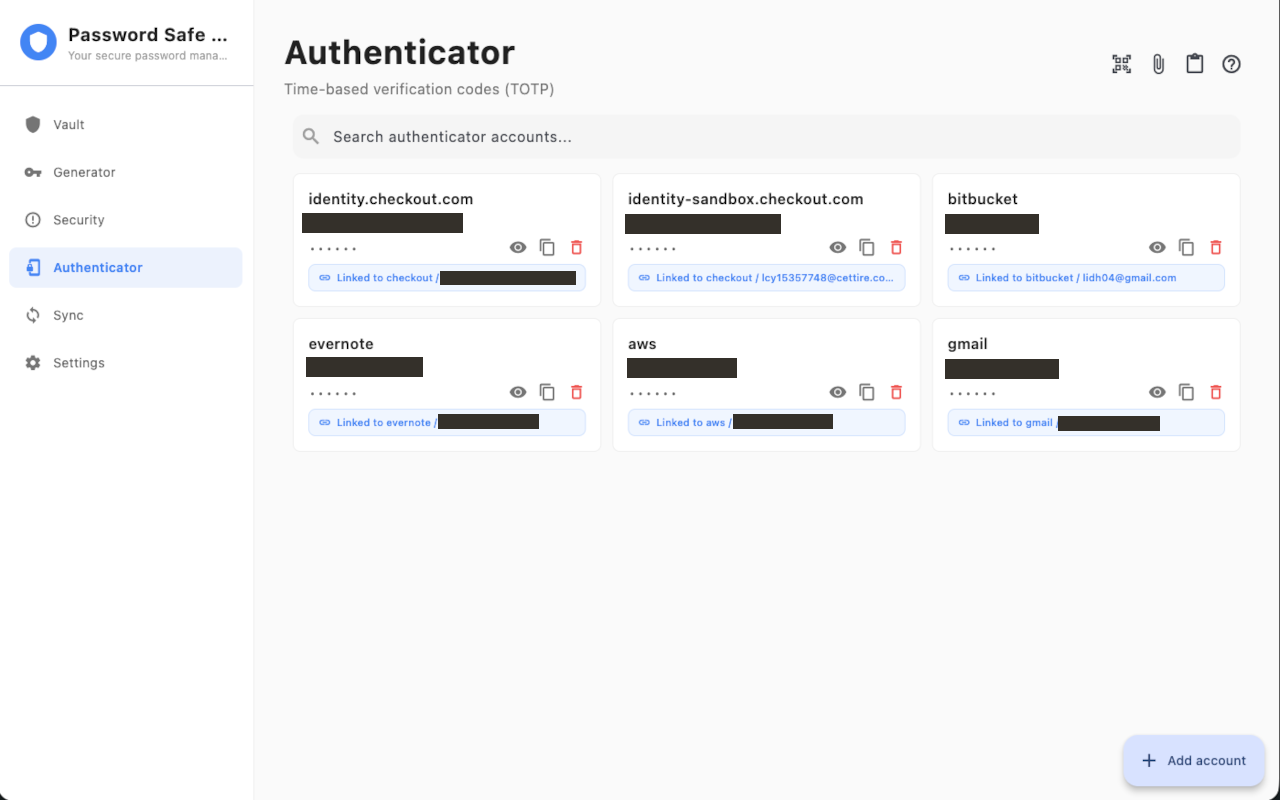
Authenticator stores time-based verification codes on this device so you do not need a separate authenticator app for vault-linked accounts. Secrets are encrypted at rest with the same AES-256-GCM vault key as your passwords. Codes exist in memory only when you show, generate, or copy them. Plaintext from a scan or paste is discarded as soon as possible.
Where to find Authenticator
On desktop, open Authenticator in the sidebar immediately after Security. On iPhone and iPad, open it from Security or Password Generator — there is no extra bottom tab.
Add an account
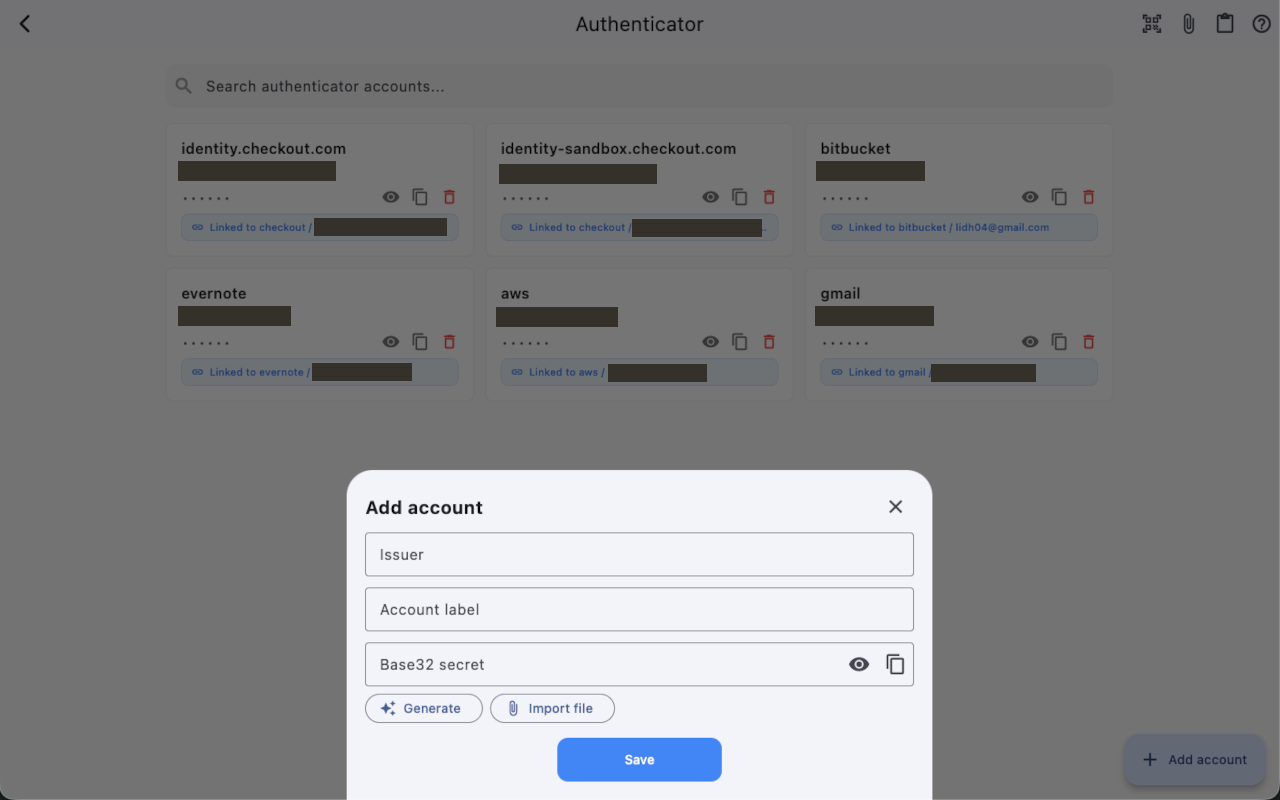
Tap Add account. Set an issuer and account label. For a new secret, tap Generate (defaults: SHA-1, 30 seconds, 6 digits). To add an existing secret, paste a Base32 string, an otpauth:// URI, or a Google Authenticator transfer URI (otpauth-migration://). On iPhone and iPad, scan a QR with the camera. On desktop, scan or pick a QR image, or import a text file. Invalid or unsupported QR / URI shows a clear error; a half-parsed secret is never stored.
View and copy a code
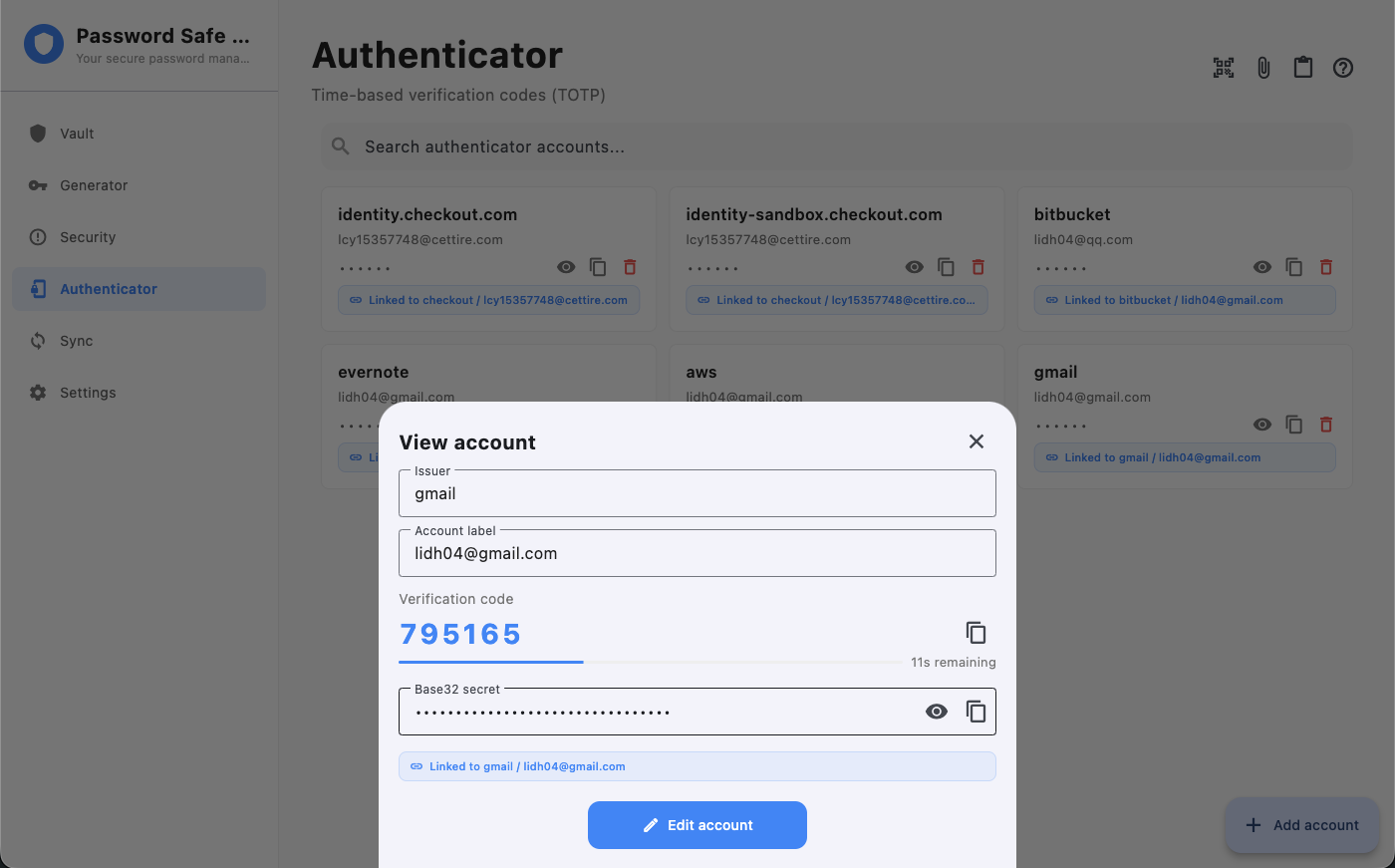
Codes are masked on the list until you reveal them. Open an account to see the live code, remaining seconds with a period progress bar, and copy the code. Reveal the Base32 secret only when you need it, then copy. Copied codes follow Settings → Privacy → Clear Clipboard, the same auto-clear as passwords. Each account can have a label and issuer for display.
Link to a vault entry
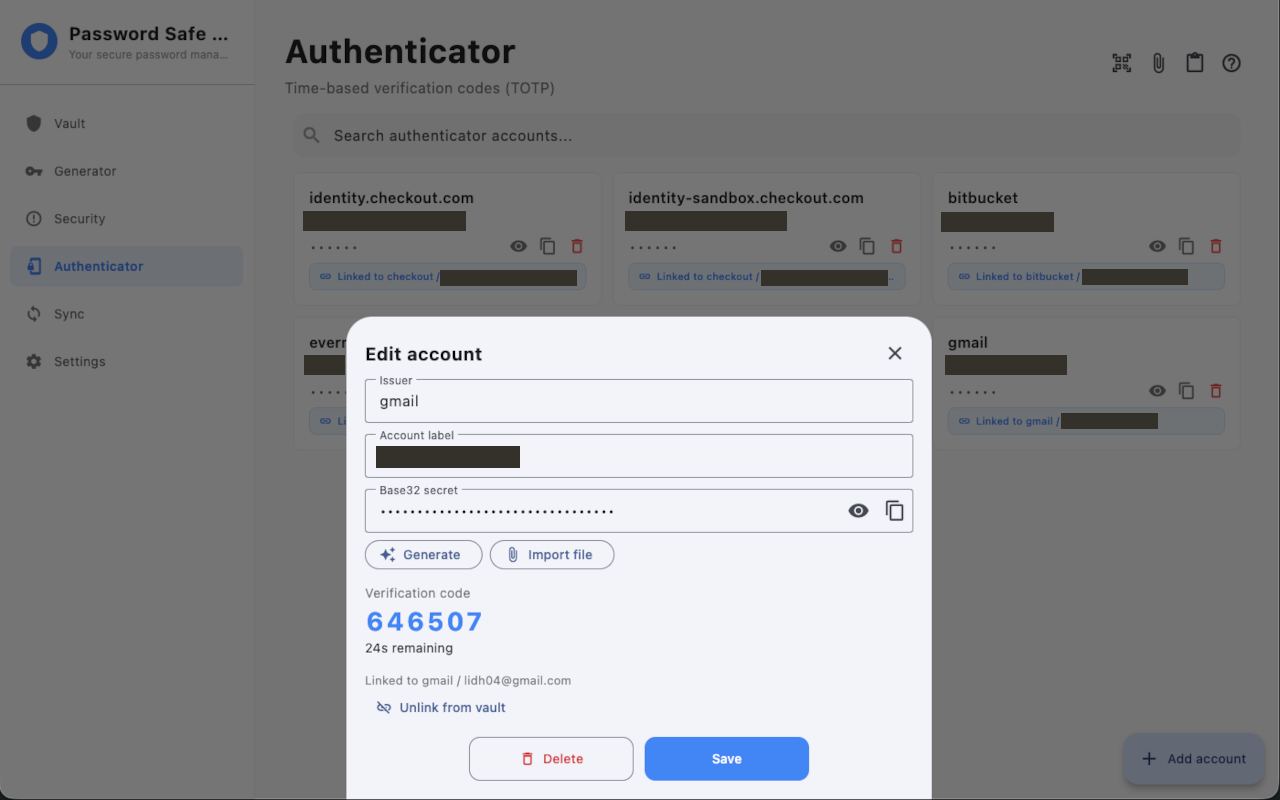
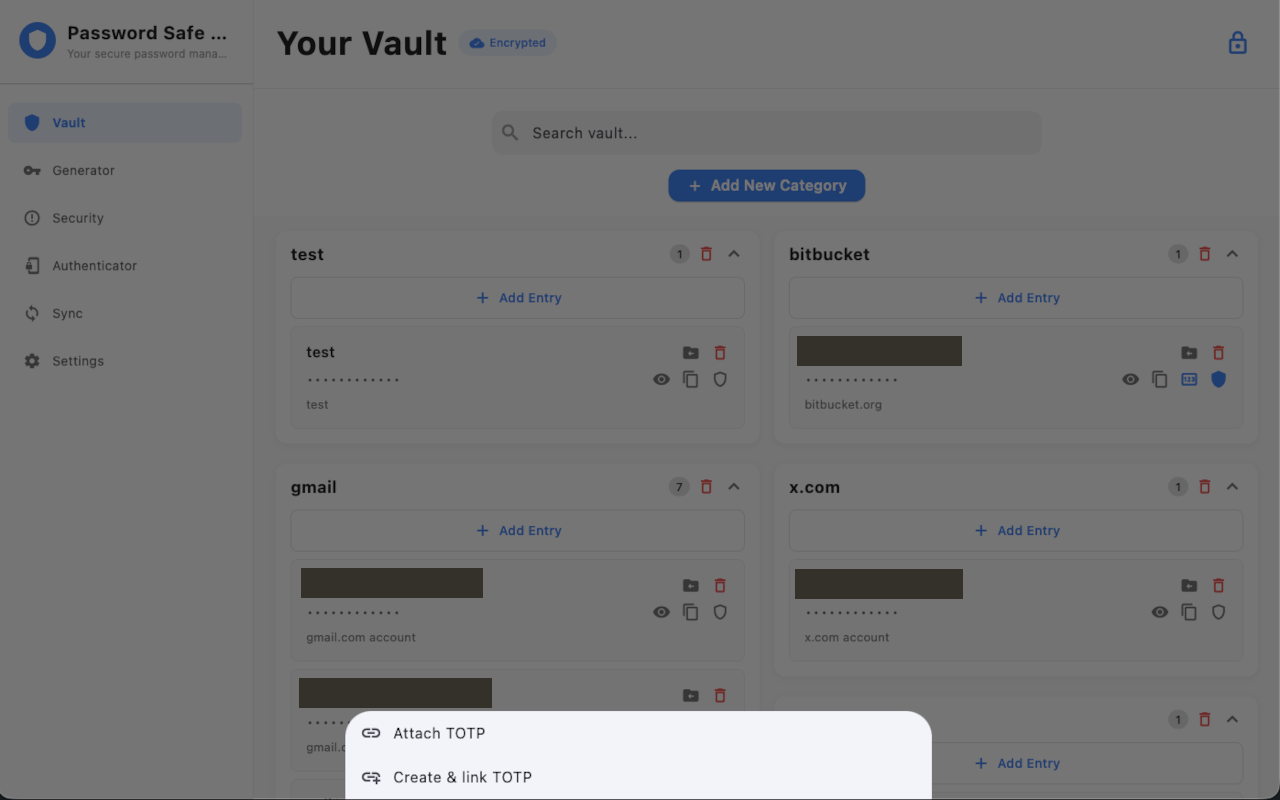
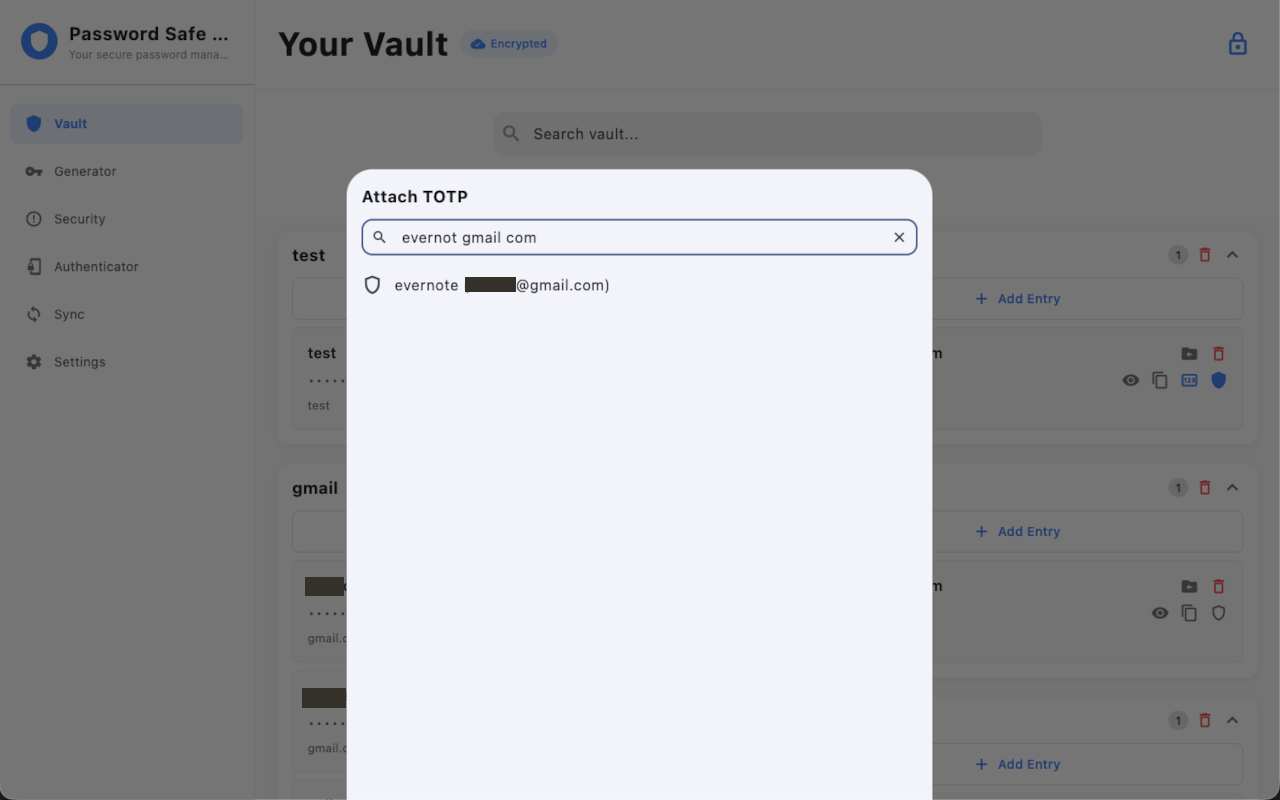
From a vault entry, choose Attach TOTP to pick an existing authenticator account, or Create & link TOTP to make one and attach it in one step. The Attach TOTP picker has a search field (issuer and label; AND search and quoted phrases). Copy the current verification code from the vault without opening Authenticator. Unlink does not delete the authenticator account unless you confirm delete.
Import from Google or Microsoft Authenticator
Import a Google Authenticator export as a QR, an otpauth-migration:// URI, or a .txt file with otpauth:// lines. Microsoft Authenticator and other RFC apps import as a standard otpauth://totp QR or URI. Multi-account Google exports show a review list (select / deselect) before you save; duplicates are skipped. Counter-based HOTP accounts in a migration export are skipped with a notice. Imported accounts keep their own algorithm, digits, and period so codes match the source app (for example SHA-256, 8 digits, or 60 seconds). This version is import-only — there is no export back to Google Authenticator or Microsoft Authenticator.
Search authenticator accounts
The Authenticator list, Attach TOTP picker, vault home, and Quick Search all use the same AND search: space-separated terms must all match; wrap a phrase in double quotes to keep spaces.
Sync and backup
Authenticator accounts travel with local-network sync and JSON import/export. Secrets are re-encrypted to the destination device key. Vault entries keep only a non-secret link. Same-title merges keep authenticator links. Fresh-install sync works even when the vault only has sample or empty data.
Settings 2FA is separate
Settings → Two-Factor Authentication is an extra lock on the app. Website login codes live in Authenticator. Browser or OS autofill of verification codes is not included in this version.
Lock, PIN, and biometrics
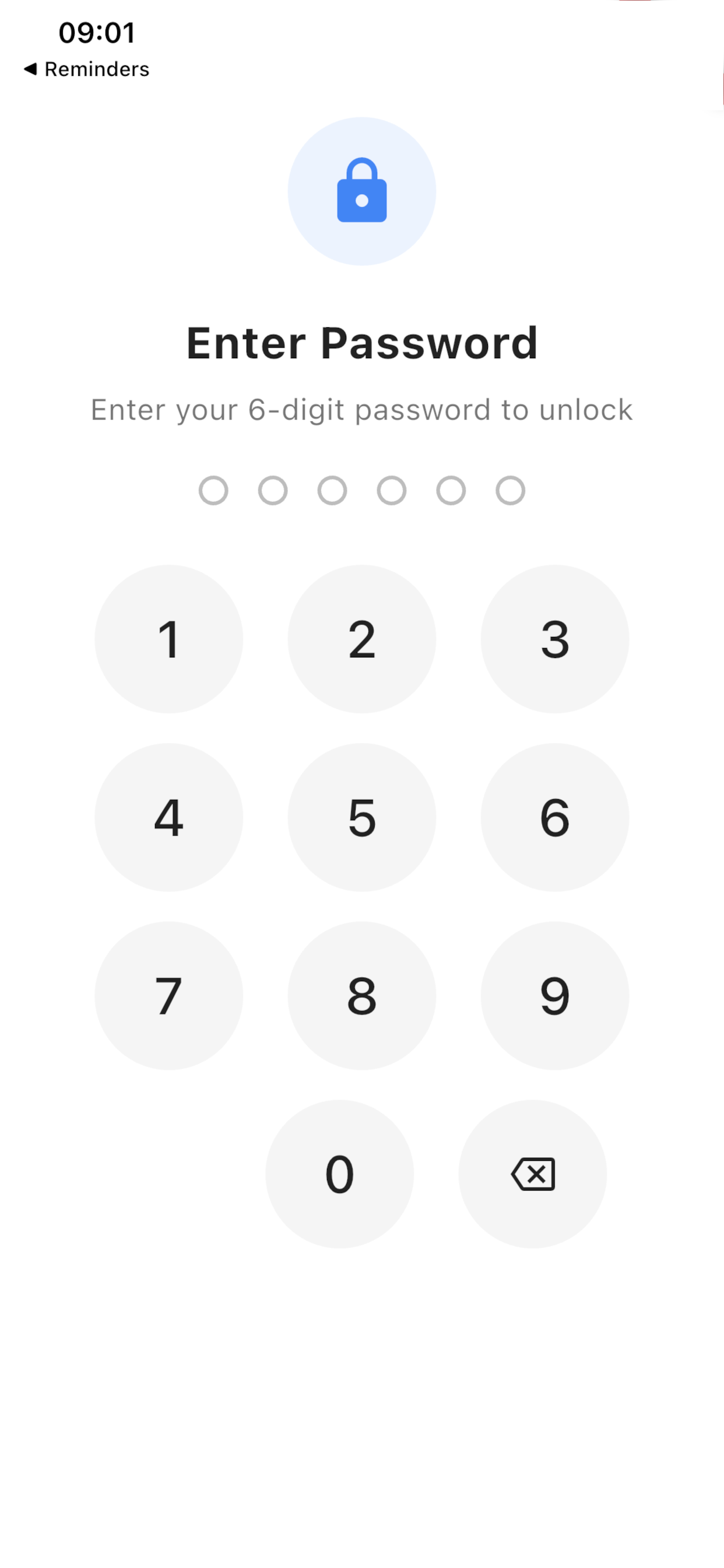
The lock icon at the top-right of the vault header locks immediately, even if Auto-Lock is off. Auto-Lock is in Settings → Security and locks after inactivity (about 5 minutes). Unlock with your PIN, plus biometrics when enabled. If you forget the PIN and biometrics are not available, we cannot reset the vault. Enable biometrics, keep a written PIN offline, and export backups regularly.
Security dashboard
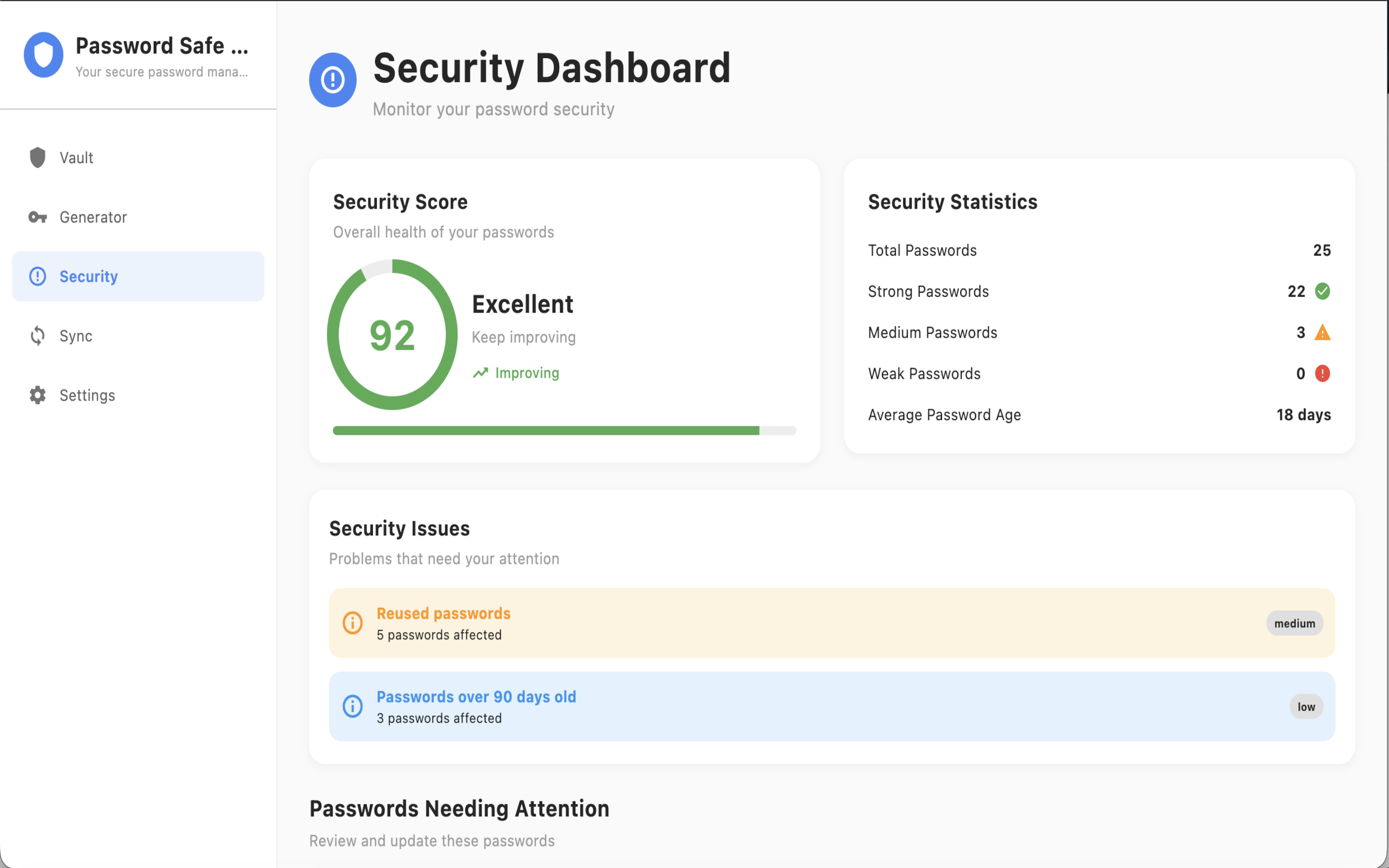
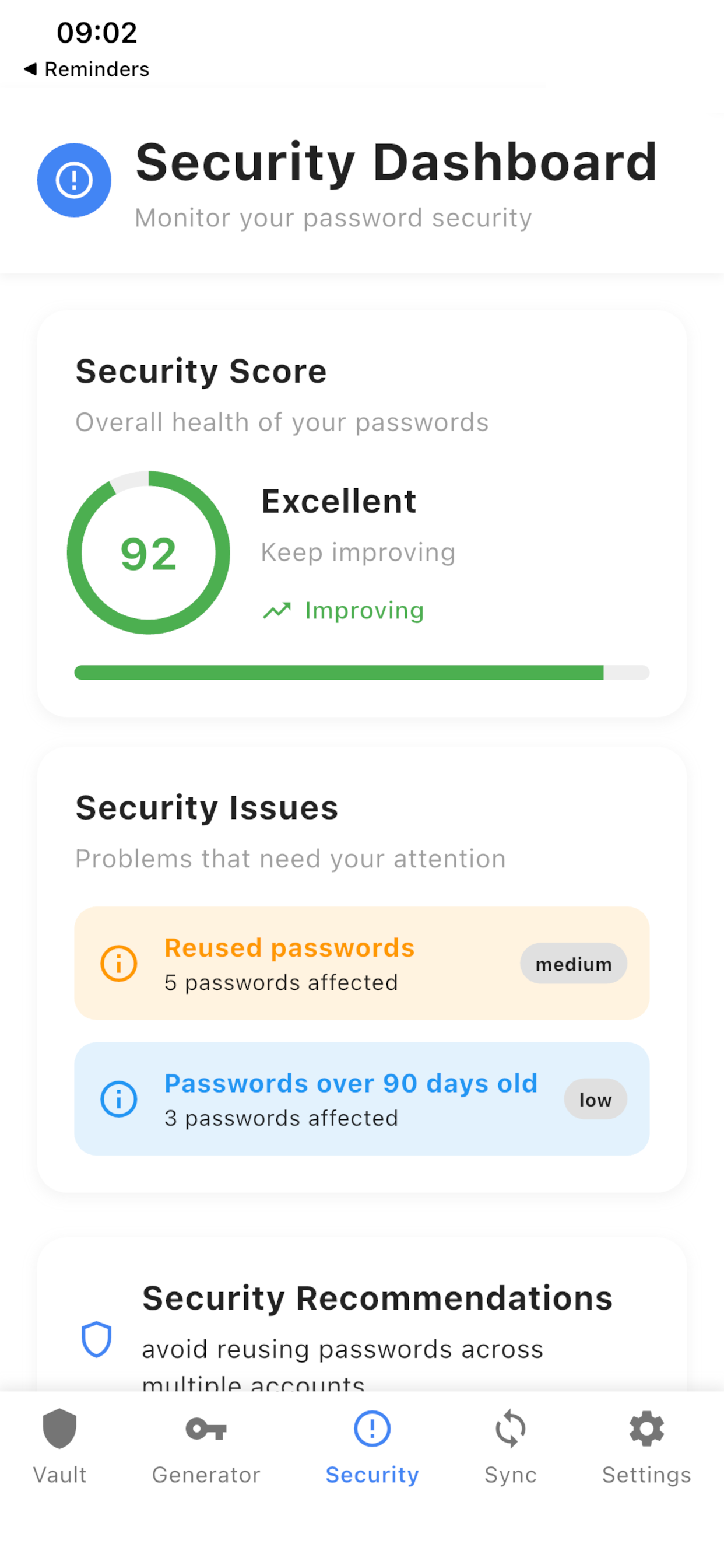
The Security dashboard shows a score, statistics, and passwords that need attention: weak, reused, or old. Tap an item to open the vault editor and change that password. This is password hygiene on your device, not a cloud breach check. Settings → Two-Factor Authentication is an extra lock on the app.
Desktop: tray and Quick Search
On macOS and Windows, closing the window hides the app instead of quitting. Quit from the tray (or ⌘Q on Mac). The tray menu includes Show, Quick Search, and Quit. Global Quick Search is ⌘⌃P on Mac and Ctrl+Alt+P on Windows. The tray Quick Search item opens the same compact window. Quick Search only opens when the vault is unlocked; if locked, the main window is shown first. The first hide-to-background each day shows a hotkey tip. On Mac, clicking the Dock icon restores a hidden window. When a result has a linked authenticator, copy the password or the current verification code.
Backup: import and export
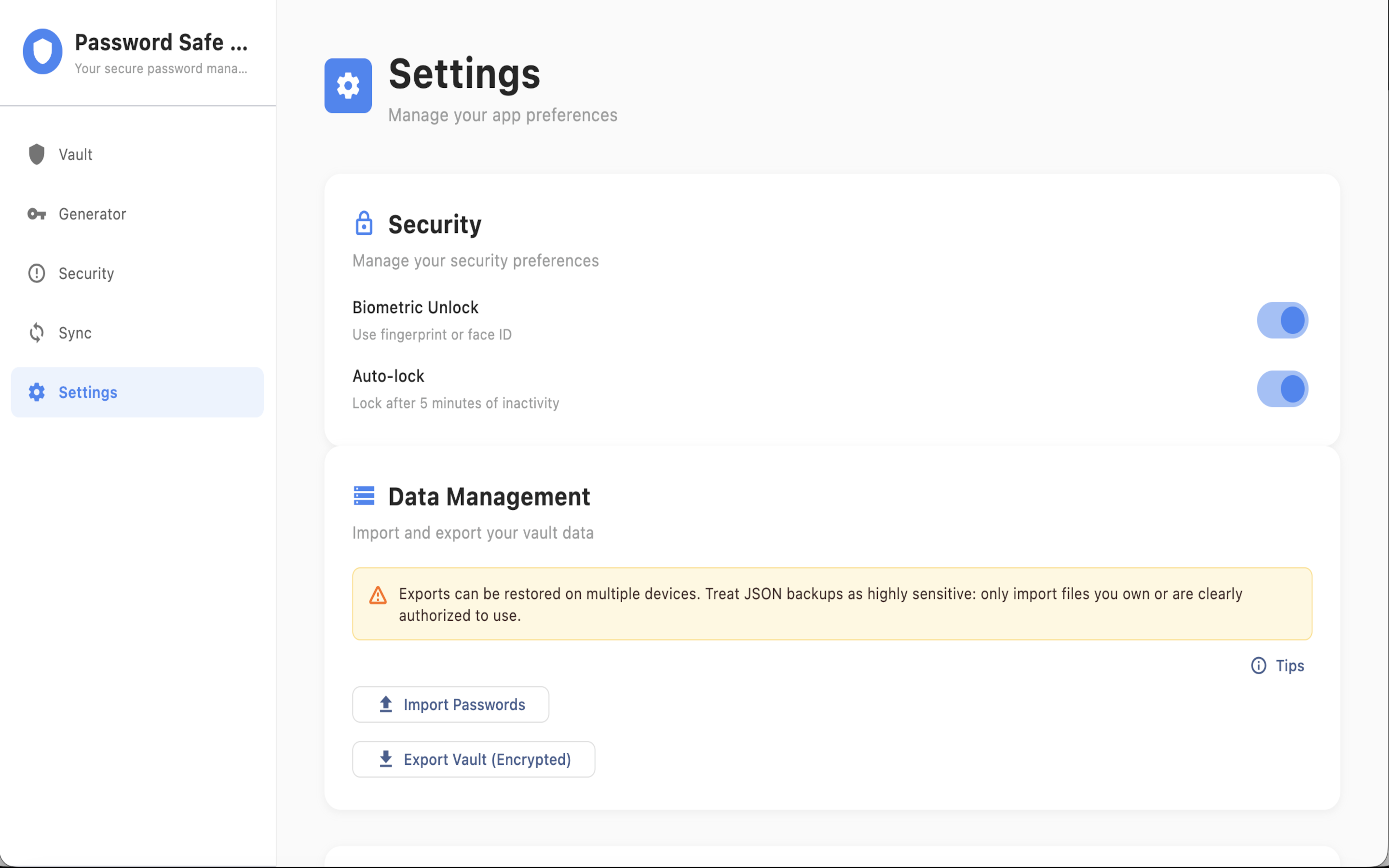
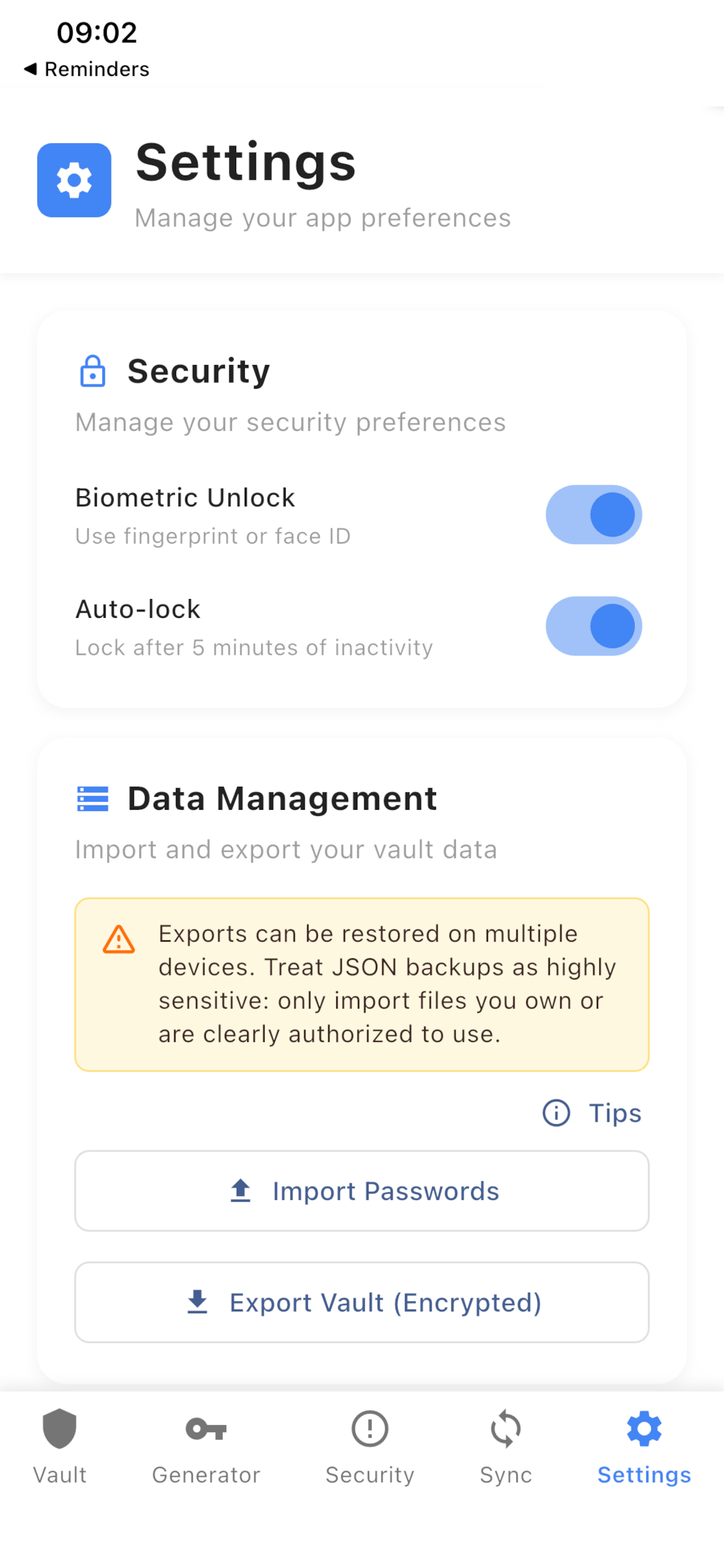
Open Settings → Data Management. Export writes an encrypted JSON backup — treat it as a secret. Import merges into the local vault; it does not wipe existing entries. New titles are added. Same title and same password are skipped. Same title with a different password keeps the newer updated time. Import may ask for the 6-digit lock passcode from the backup. Import only your own export, or a file you were explicitly authorized to use. Authenticator import accepts Google Authenticator export text files (.txt with otpauth://) and QR images.
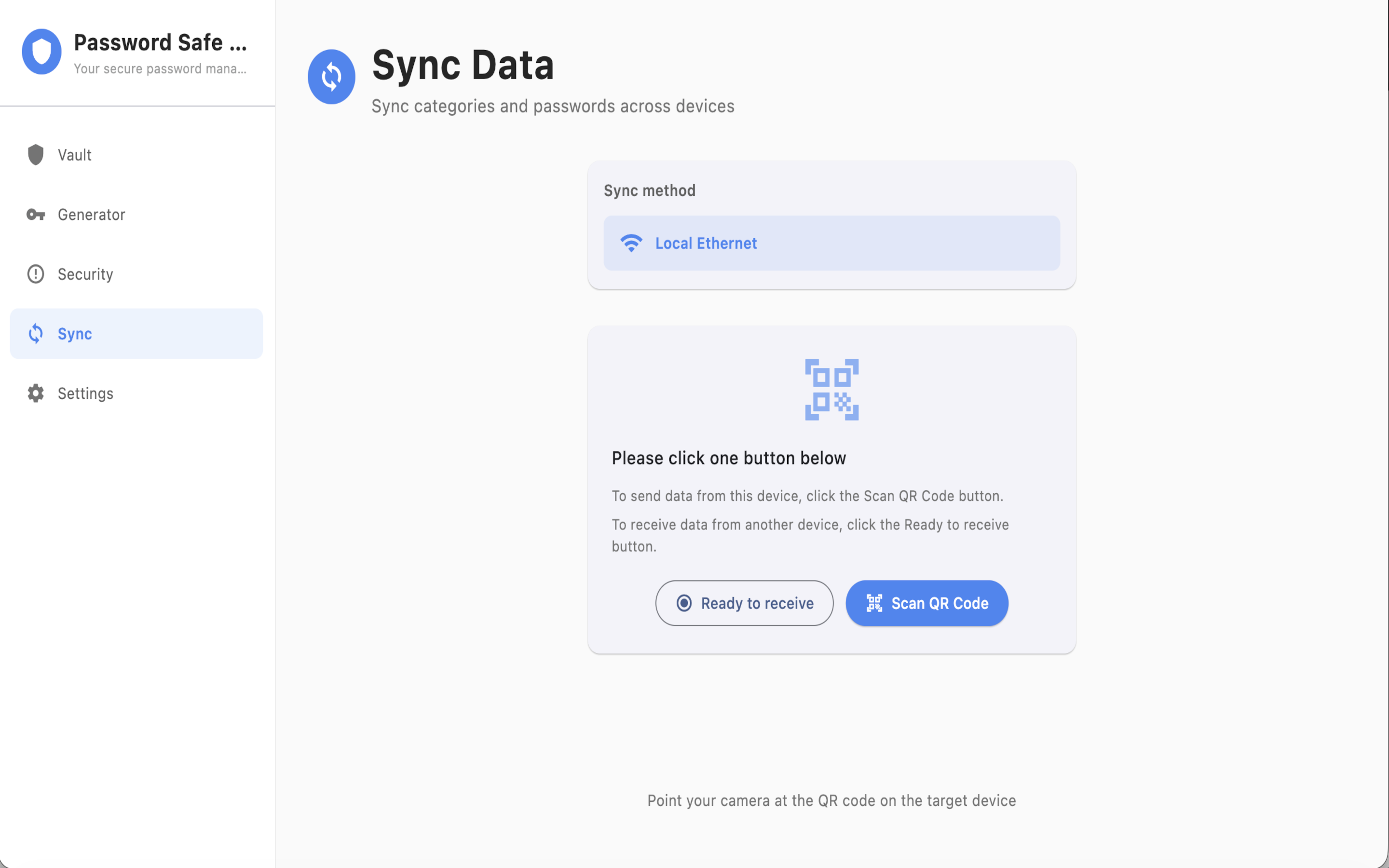
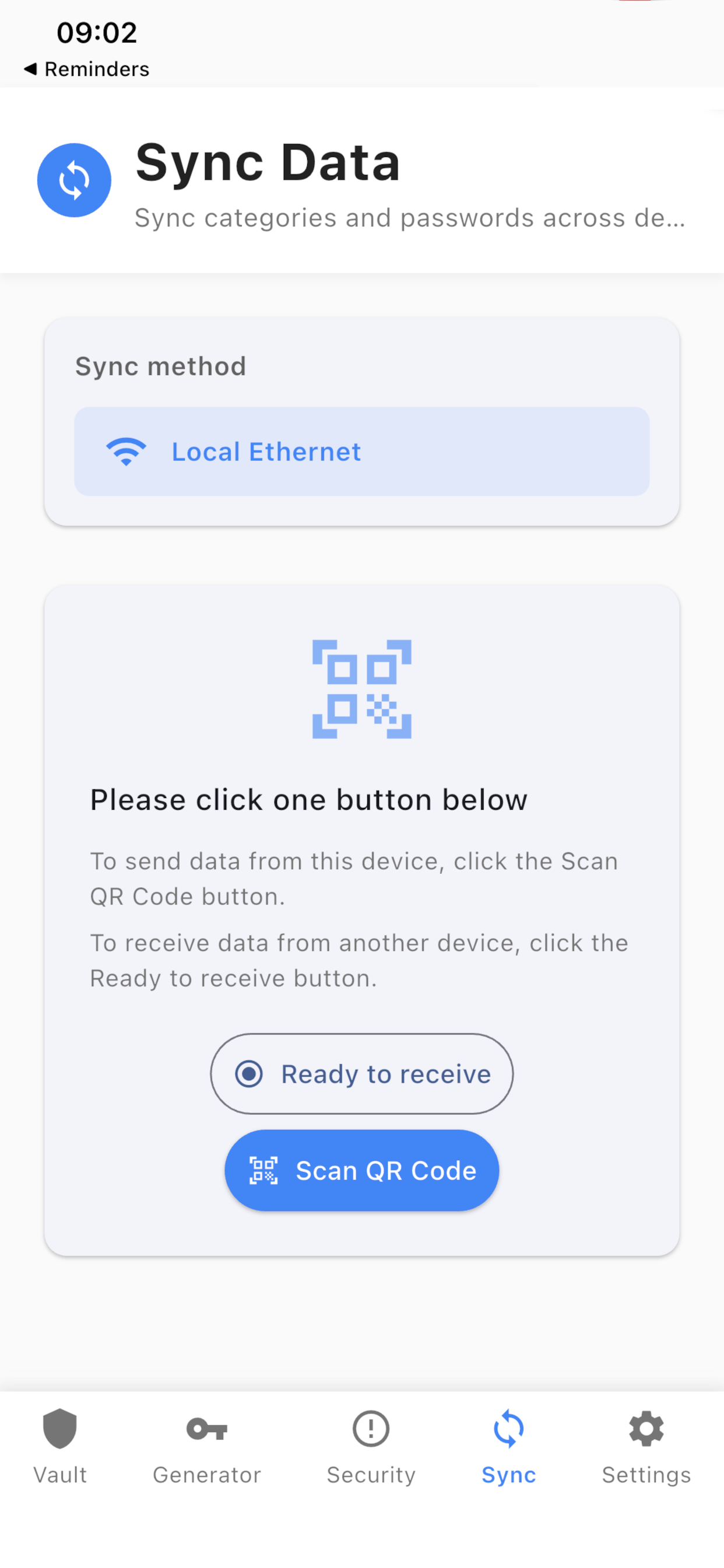
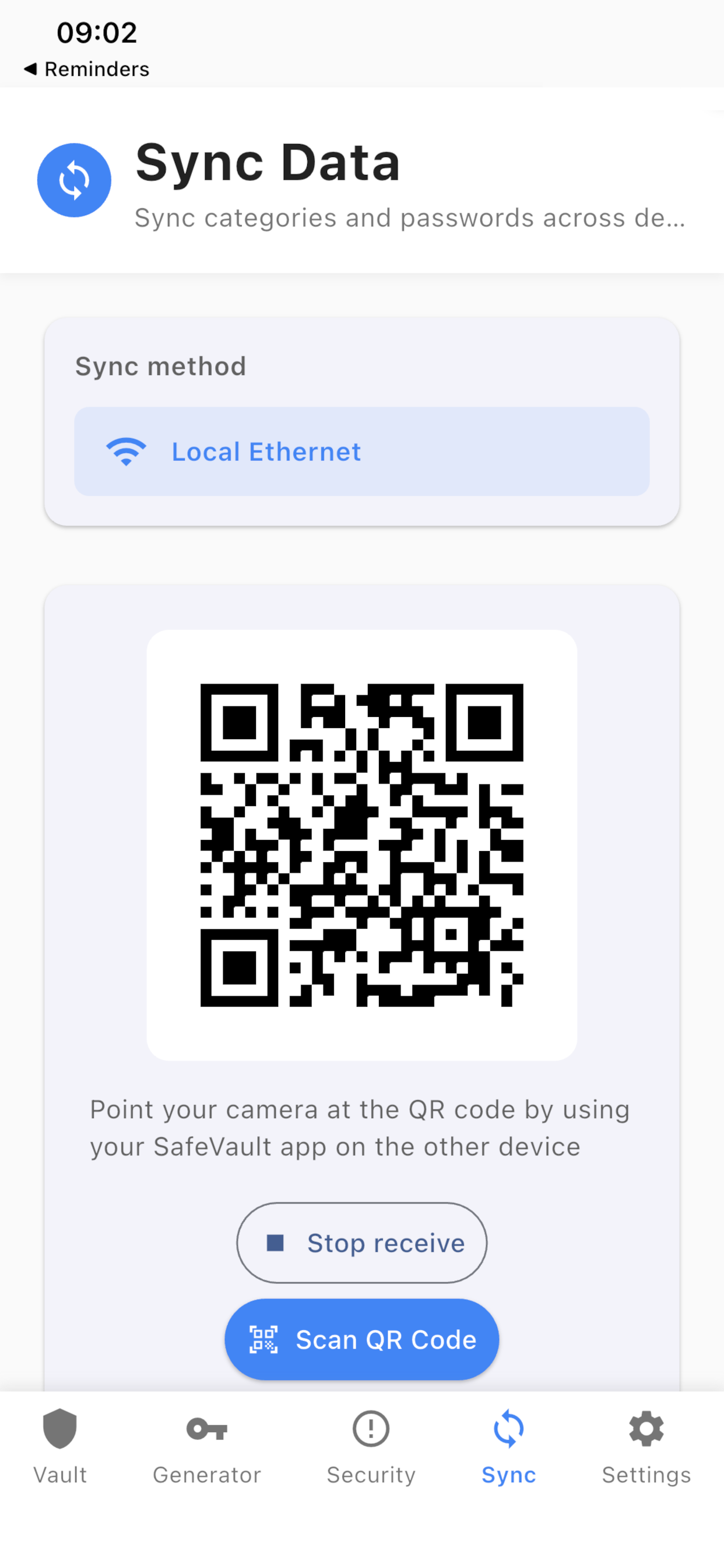
Sync two devices (Local Ethernet)
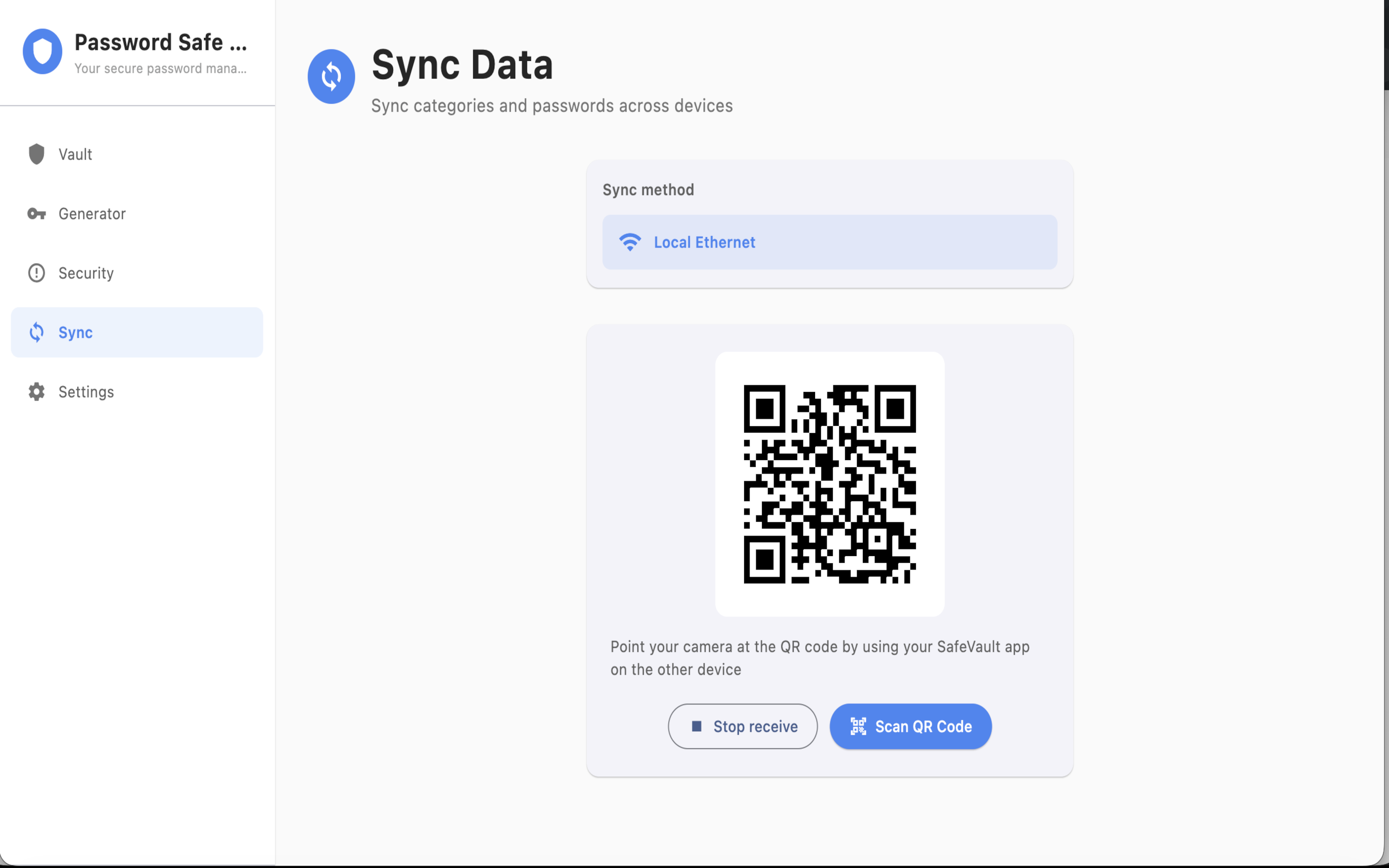
Open Sync on both devices. Use Local Ethernet (Wi‑Fi or Ethernet) and pair with the QR scanner. Stay on the same network, keep both vaults unlocked, and leave the app in the foreground during transfer. There is no vendor cloud. On iOS and macOS the Sync screen is available. On Android and Windows it appears after the store unlock. Merge uses the same rules as import. Authenticator accounts are included. Vault entries keep a pointer to the linked authenticator; secrets stay in the authenticator store and are re-encrypted for the destination vault.
Store purchase and Restore Purchases
The local vault works without paying. The store unlock enables multi-device sync and vault import/export on Android and Windows. Windows Store lists a one-time durable add-on for this device, including future premium upgrades for that device — not a subscription. Complete purchases in the App Store, Google Play, or Microsoft Store. If you reinstall, use Restore Purchases in Profile with the same store account. That store account is only for payment, not a SafeVault login.
Languages and profile
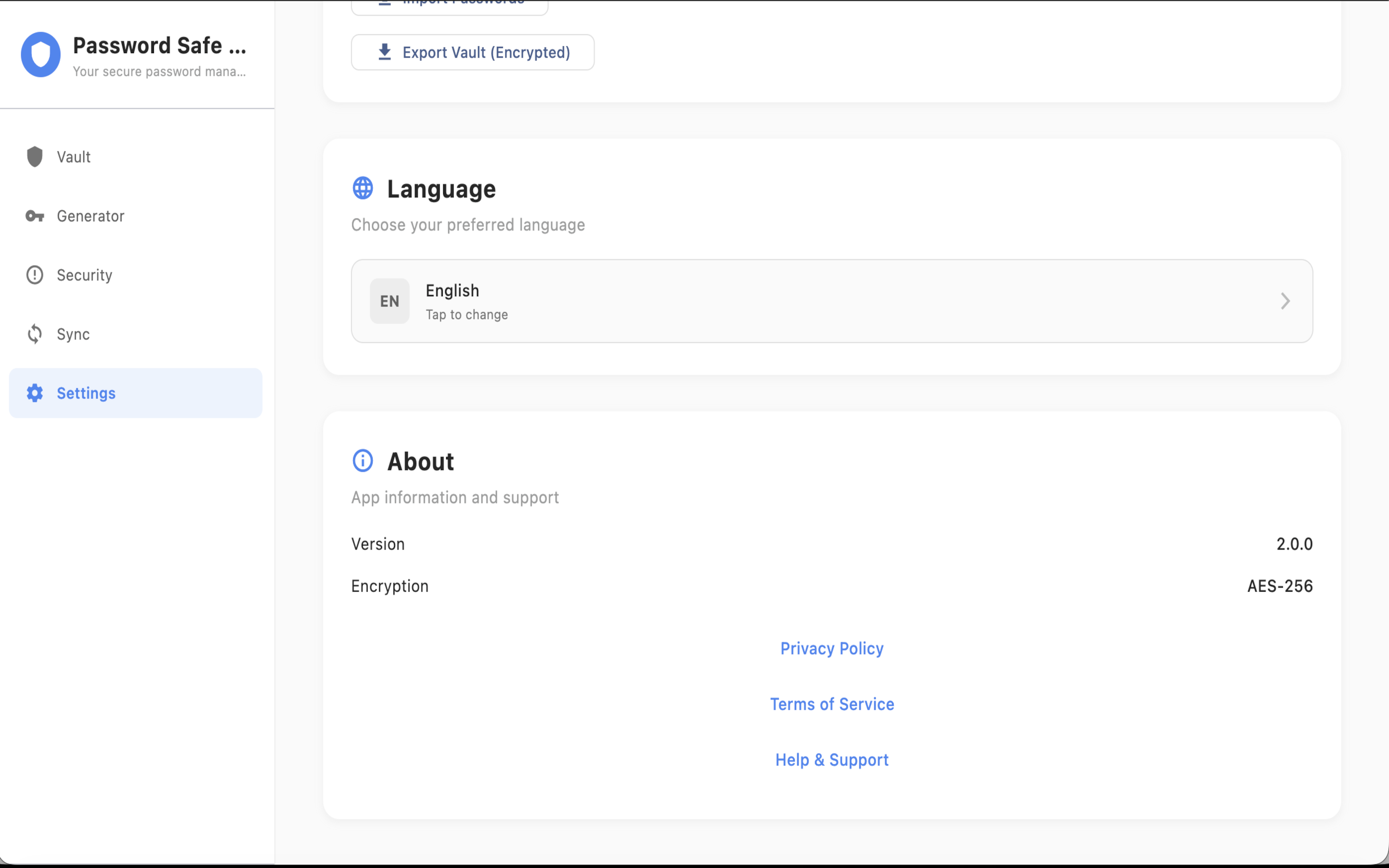
Change the app language in Settings → Language. The website language switcher is in the header. Profile includes Restore Purchases. Settings → About shows the version, Privacy Policy, Terms, and Help & Support. On Android and Windows, Settings also shows this device’s paid state.
Frequently asked questions
What is SafeVault?
SafeVault is a local-first password manager with a built-in authenticator. Vault data is encrypted with AES-256-GCM on your device. Your passwords and verification codes stay on the devices you install the app on.
Do I need an account?
No. Install and use. The vault is local-only on this device. There is no SafeVault account to create or sign in to.
Does SafeVault work offline?
Yes. An internet connection is only needed for optional device-to-device sync and for store purchase or Restore Purchases.
Which platforms are supported?
iOS, Android, macOS, and Windows through the stores. SafeVault is not a web vault.
Is there a subscription?
The local vault works without paying. Sync and, on Android and Windows, import/export need the store unlock. Windows Store lists a one-time durable add-on, not a subscription. Apple and Google purchases are completed in that store.
How are passwords encrypted?
All passwords are encrypted with AES-256-GCM on your device. Keys stay in platform secure storage: Keychain on iOS and macOS, EncryptedSharedPreferences on Android, and Windows Credential Manager on Windows.
Can you recover my PIN or master password?
No. Enable biometrics and keep an encrypted export. We cannot reset a forgotten PIN. This is by design.
What does Two-Factor Authentication in Settings do?
It adds an extra lock on the app. Website login codes live in Authenticator, which is separate from this setting.
Does SafeVault include an authenticator?
Yes. Authenticator stores time-based verification codes on this device. Add accounts by generating a secret, pasting otpauth://, scanning a QR, or importing from Google or Microsoft Authenticator. Link a code to a vault entry, then copy it from the vault or Quick Search.
How does search with several words work?
Each space-separated word must match. Put a phrase in quotes to keep the spaces.
Can I import Google Authenticator accounts?
Yes. Import a Google Authenticator export as a QR, an otpauth-migration:// URI, or a .txt file. Multi-account exports show a review list before you save; duplicates are skipped. Microsoft Authenticator imports as a standard otpauth:// QR or URI. This version is import-only.
Will imported codes match Google Authenticator?
Yes, if you import the otpauth URI or Google transfer. Imported accounts keep algorithm, digits, and period so codes match the source app. New secrets generated in SafeVault default to SHA-1 / 30 seconds / 6 digits.
A Google export skipped some accounts.
Counter-based HOTP accounts in a migration export are skipped with a notice. Only time-based accounts are imported.
Does copied data stay on the clipboard?
Enable Settings → Privacy → Clear Clipboard to clear copied passwords and verification codes after 30 seconds.
Why can’t I save two entries with the same title?
Titles must be unique per category, including after you move or rename an entry.
How do I back up my vault?
Open Settings → Export Vault to save an encrypted JSON file. On Android and Windows this needs the store unlock.
How do I sync two devices?
Open Sync on both devices, choose Local Ethernet, pair with QR, and stay on the same network. If two entries conflict, the newer updated time is kept.
Can I import a friend’s vault file?
Only with their explicit permission. Export files are highly sensitive. Import only a file you own or were clearly authorized to use.
Import says the passcode or key does not match.
Enter the 6-digit lock PIN from the device that created the export. A damaged file or a file from a different app key will not verify.
What does the in-app purchase unlock?
Multi-device sync and vault import/export on payment platforms. On Windows it is a one-time purchase for this device, including future premium upgrades for that device.
I reinstalled the app and lost the unlock.
Use Restore Purchases in Profile with the same store account. On Windows, the durable add-on license is tied to the Microsoft account.
What happens if I uninstall the app?
If you are unpaid, the vault on that device is deleted with the app, and you are responsible for that data loss. If you are paid, sync among multiple devices and keep backups on those devices so uninstalling one of them does not lose the vault.
I closed the window and the app is still running.
That is intended. Closing hides the app to the tray. Use tray Quit, or ⌘Q on Mac, to exit fully.
What is the Quick Search shortcut?
⌘⌃P on Mac, Ctrl+Alt+P on Windows, or the tray Quick Search item. The vault must be unlocked first. If a result has a linked authenticator, you can copy the password or the current verification code.
How do I contact support?
Email service@sihuic.com (or receptionist@sihuic.com). Include your platform, app version from Settings → About, which store you used, and the steps you already tried.
Troubleshooting
Biometrics will not unlock
Turn on device biometrics, allow the app permission, fall back to your PIN, then restart the app.
Sync does nothing
Put both devices on the same network, choose Local Ethernet, finish QR pairing, unlock both vaults, and keep the app in the foreground. On Android and Windows, complete the store unlock first.
Import or export is missing or blocked
On Android and Windows, complete the store unlock or Restore Purchases. On iOS and macOS, open Settings → Data Management. Check file access permission.
Import verification failed
Use the 6-digit PIN from the source device and a file this app exported. Do not edit the JSON.
Authenticator import did not add accounts
Use a Google Authenticator export .txt file (otpauth:// lines) or a QR image. Review the account list before you confirm. A screenshot that is not a QR will not import. Multi-account exports let you select or deselect accounts first.
QR or URI import failed
Use a QR or URI that starts with otpauth:// or otpauth-migration://. Invalid or unsupported payloads show an error and are not stored. Counter-based HOTP accounts in a Google transfer are skipped with a notice.
Duplicate title error
Rename the entry or move it to another category.
Quick Search does nothing
Unlock the vault first, then use ⌘⌃P, Ctrl+Alt+P, or tray Quick Search.
Store purchase UI does not appear (Windows)
Use the Microsoft Store or an installed MSIX build, not an unpackaged debug run. Sign in with the Microsoft account that should own the add-on.
Paid on another device, this one still locked
The Windows unlock is per device. Use Restore Purchases on the same store account, or purchase on this device.
App still in the menu bar or tray after close
Closing hides the app. Quit from the tray.
Contact
For questions, support, or bug reports, email service@sihuic.com. You can also reach receptionist@sihuic.com. Include your platform, app version (Settings → About), store, and steps already tried.